Desktop Companion
MantisBuddy
Setup Guide
MantisBuddy is the desktop companion app that connects your phone to your PC or Mac via USB. It enables Mantis Gamepad Pro to run without root access by establishing an ADB connection.
Video Tutorial
Download MantisBuddy
MantisBuddy v3.0 for Windows
Compatible with Windows 7, 8, 10, 11
Setup InstructionsWindows
Enable USB Debugging
On your Android device, go to Settings > About Phone and tap Build Number 7 times to unlock Developer Options. Then go to Settings > Developer Options and enable USB Debugging.
Connect via USB
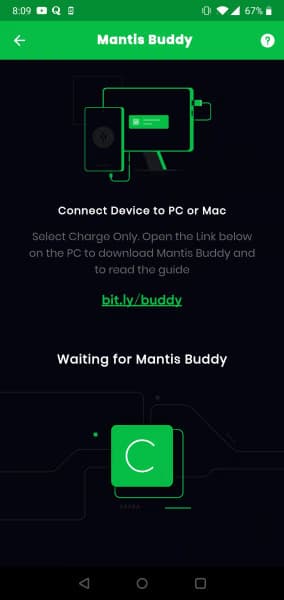
Connect your Android device to your PC or Mac using a USB cable. When prompted on your phone, select "Charge Only" or "File Transfer" mode — either works.
Install USB Drivers (Recommended)
Install the Universal ADB Driver for reliable device detection. This is especially important on Windows 7. Some devices may also need manufacturer-specific USB drivers.
If MantisBuddy keeps saying "Device not found," install the USB driver for your specific device from your device manufacturer's official website.
Extract the Archive
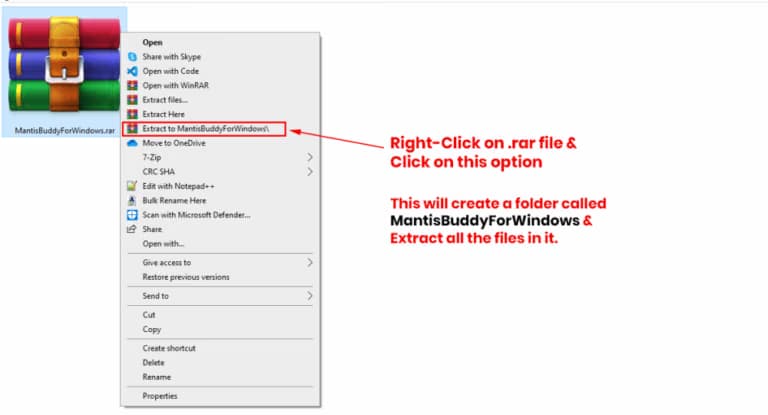
Right-click the downloaded .zip file and select "Extract All" or use 7Zip to extract. This creates a folder with all required files.
If you don't have an archive tool, Windows can extract .zip files natively — right-click and select "Extract All."
Run MantisBuddy
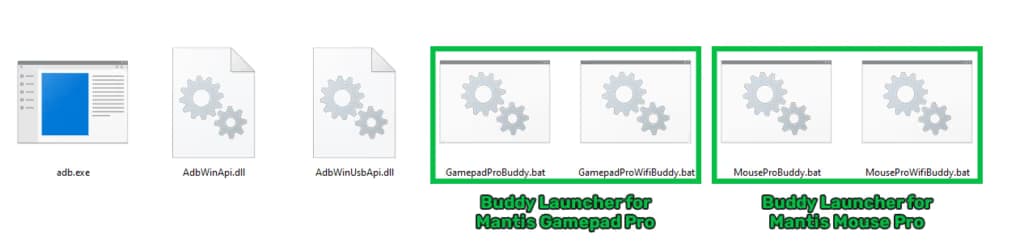
Double-click GamepadProBuddy.bat to launch MantisBuddy. A terminal window will open and begin the connection process.
Authorize the Connection
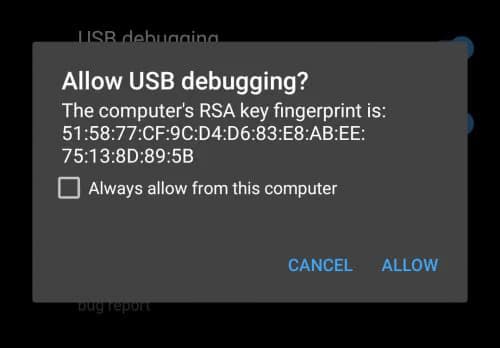
When prompted on your phone, tap "Allow" on the USB debugging authorization dialog. Check "Always allow from this computer" to skip this step in the future.
You're All Set
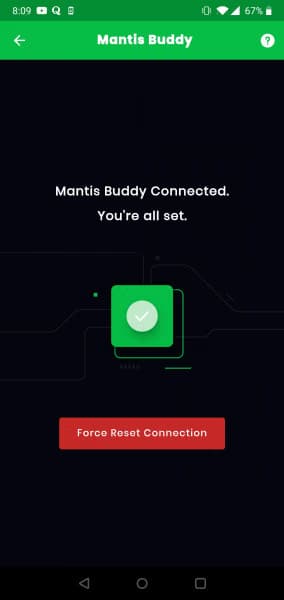
Once connected, you'll see a green checkmark in MantisBuddy and a confirmation on your phone. You can now disconnect the USB cable — the connection persists over WiFi. Keep USB Debugging enabled for future connections.
Disconnect USB
When MantisBuddy is connected, you may disconnect your Android device from your PC. The connection will persist over WiFi.
If MantisBuddy keeps disconnecting after getting connected, run GamepadProWifiBuddy.bat instead.
Do not turn off USB Debugging after MantisBuddy is connected with the app. Use the in-app feedback mechanism to send feedback/queries or write at contact@mantispro.app.
Troubleshooting
Device not detected after connecting USB
Try a different USB cable (some cables are charge-only). Make sure USB Debugging is enabled in Developer Options. On Windows, install the Universal ADB Driver.
Connection drops after disconnecting USB
Ensure both your phone and computer are on the same WiFi network. The connection should persist over WiFi after the initial USB setup. If it drops, reconnect via USB briefly.
"ADB not found" or similar error
Make sure you extracted all files from the archive — the ADB binary is included. Do not move individual files out of the extracted folder.
Windows SmartScreen blocks the .bat file
Click "More info" on the SmartScreen popup, then click "Run anyway." The file is safe — it simply launches the ADB connection script.
Need help?
If you're having trouble connecting, use the in-app feedback option or reach us at contact@mantispro.app